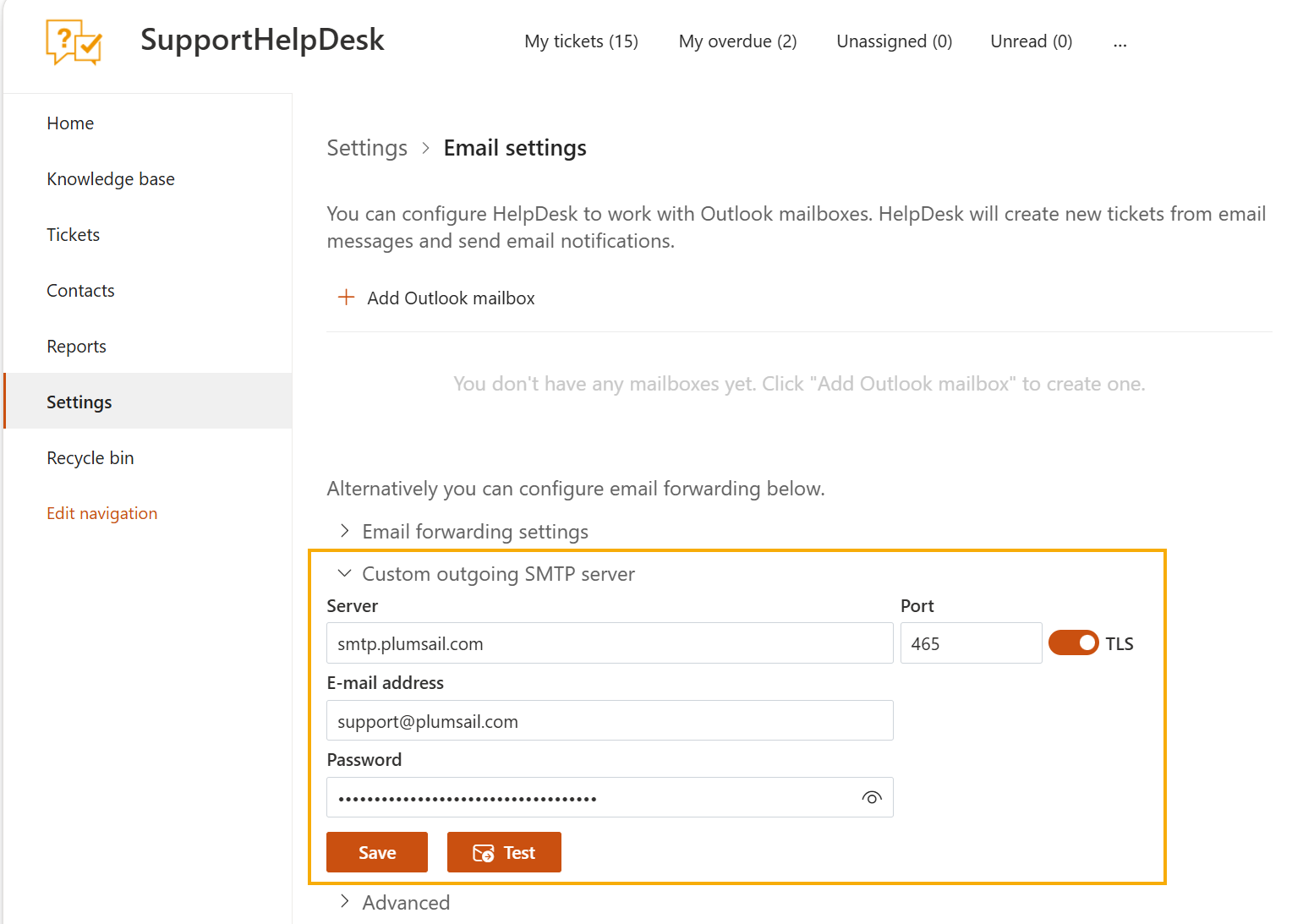
Custom outgoing SMTP server settings
By default, HelpDesk sends notifications from the auto generated email address. Instead, you can connect your own support mailbox as the outgoing SMTP server, so that notifications are sent from your own address.
Note
If you only want requester replies to arrive in your mailbox, set a Reply to address instead.
Navigate to the Email settings section on the Settings page.
Expand Custom outgoing SMTP server and fill in the fields:
Server: the host name of your SMTP server, for example
smtp.plumsail.com.Port: the port your server accepts, for example
465. Turn on TLS if the server requires an encrypted connection.E-mail address: the mailbox that HelpDesk will send messages from.
Password: the password for that mailbox.
Click Save, and then click Test to check that HelpDesk can send messages through the server.